3D-Layer selection window
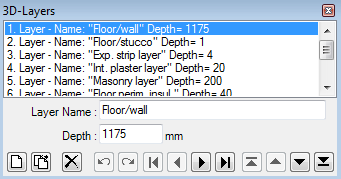 Layer
selection
window displays a list of all 3D layers of a construction entered as a
3D Layered
project
.
Layer
selection
window displays a list of all 3D layers of a construction entered as a
3D Layered
project
.
Important: The order of layers
in the list is significant for the resulting
3D construction.
From this window one layer can be selected for editing, new layers can be inserted, the order of layers can be changed (moved towards front or back) or layers can be deleted from the project.
The layer currently processed is shown as selected. Data of the selected
3D-layer is shown and can be modified within
editing part of the window
Remark: Only one layer can be selected for processing.
Remark: The windows
Element selection
(browser)
and Elements 2D
always display elements of the currently selected layer.
| Layer list | List of all input layers in the specific order along the Z direction of coordinate system |
| Layer Name |
Name of the layer. It is used for documentation purpose. |
| Depth |
Define the thickness of the layer in the direction of Z
axis. |
 New New |
Appends a new layer (with uniform thickness of 1000mm) onto the end of layer list |
 Duplicate Duplicate |
Creates an exact copy of selected layer (including copies of elements contained in this layer) and inserts the new layer into the layer list just beyond the selected one. |
 Delete Delete |
Deletes the currently selected layer from the list. Warning: all elements which belong to this layer are inadvertently deleted also. Remark: You will be asked for confirmation. |
 Undo Undo(Ctrl-Z) |
Undoes (reverts) the latest action(s) in the given
editing context
. |
 Redo Redo(Ctrl-Y) |
Redoes (reapplies) the action lately undone in the given editing context. |
 |
Selects First, Previous, Next or Last layer. |
 Relegate
to Backmost Relegate
to Backmost
|
Reorders the currently selected layer to the backmost position in the list. The layer is then shown as first in the list. |
 Relegate Relegate
|
Reorders the currently selected layer one position "towards back" in the list. The layer is then shown earlier in the list. |
 Promote Promote
|
Reorders the currently selected layer one position "towards front" in the list. The layer is then shown later in the list. |
 Promote
to Frontmost Promote
to Frontmost
|
Reorders the currently selected layer to the frontmost position in the list. The layer is then shown as last in the list. |
| Click right mouse button | Exposes the context menu of layer editing functions |
| Click left mouse button | Selection of a layer from the layer list |
| Double click left mouse button | Selection of a layer from the list and exposure of Element selection (browser) and Elements 2D windows. |
Layer list
Each line in the list represent one layer in the model input. Adjacent to layer's name its thickness is displayed. The windows Element selection (browser) and Elements 2D always display elements of the currently selected layer. The construction resulting from current modelling can be observed within the Elements 3D window.
The order of layers in the list corresponds to the sequence of layers as they are stacked together along Z coordinate direction. See the description of the project type "3D layered project" .
Note: You shall switch between input fields by using the TAB-key. Using that key confirms the data entry. On the other hand it provides a good alternative compared to permanent mouse use.
Layer editing
 Data of a selected layer is displayed within
layer editing part of the window
for thickness adjustments.
Data of a selected layer is displayed within
layer editing part of the window
for thickness adjustments.
A double click onto the layer's line exposes the windows Element selection (browser) and Elements 2D which display elements of the currently selected layer for further processing.
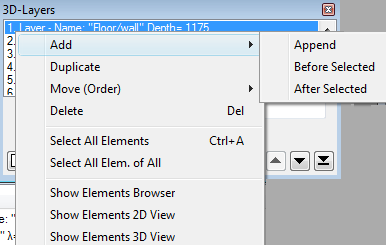
When the right mouse button is presses over layer list a context menu of layer editing is shown and offers further layer processing functions.
Layer selection
A click onto layer's line in the layer list selects corresponding layer for further processing.
Selection can be done by arrow keys or by clicking the buttons Next/Prev. also.
Reordering layers
 The order in which layers are shown in the list is significant for the
stacking order of these layers in Z coordinate direction. Reordering of layers
results in different stacking order.
The order in which layers are shown in the list is significant for the
stacking order of these layers in Z coordinate direction. Reordering of layers
results in different stacking order.
 Buttons "Relegate" and "Promote" are used to move
selected layer within the list and thus change the stacking order of layers. See
the description of the
project type
"3D layered project"
.
Buttons "Relegate" and "Promote" are used to move
selected layer within the list and thus change the stacking order of layers. See
the description of the
project type
"3D layered project"
.
Functions of the context menu
| Add→Append | Appends a new layer (with uniform thickness of 1000mm) onto the end of layer list. |
| Add→Before Selected | Inserts a new layer (with uniform thickness of 1000mm) just before the one selected in the list. |
| Add→After Selected | Inserts a new layer (with uniform thickness of 1000mm) just below the one selected in the list. |
| Duplicate | Creates an exact copy of selected layer (including copies of elements contained in this layer) and inserts the new layer into the layer list just beyond the selected one. |
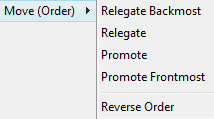
| Move (Order) →Relegate to Backmost | Reorders the currently selected layer to the backmost position in the list. The layer is then shown as first in the list. |
| Move (Order) →Relegate | Reorders the currently selected layer one position "towards back" in the list. The layer is then shown earlier in the list. |
| Move (Order) →Promote | Reorders the currently selected layer one position "towards front" in the list. The layer is then shown later in the list. |
| Move (Order) → Promote to Frontmost | Reorders the currently selected layer to the frontmost position in the list. The layer is then shown as last in the list. |
| Move (Order) →Reverse Order | Reorders elements of the list to the opposite direction. The earlier frontmost layers displays as backmost then. |
| Delete |
Deletes the currently selected layer from the list. Warning: all elements which belong to this layer are inadvertently deleted also. |
| Select All Elements (Ctrl-A) |
Selects all elements of the current layer for further
processing. Remark: Use it to emphasize layer within transparent Elements3D view or as preparation for translation/rotation etc. |
| Select All Elements in All Layers | Selects all elements in all layers for further processing. |
| Show Elements Browser | Exposes the Element selection (browser) - window showing elements of currently selected 3D-layer. |
| Show Elements 2D View | Exposes the Elements 2D - window showing elements of currently selected 3D-layer. |
| Show Elements 3D View | Exposes the Elements 3D window . |
Remark
: Layer list is only meaningful for
3D Layered
Project
. Within a 2D-Model editing of layer list is inhibited (2D model
corresponds to only one layer with fixed 1 meter thickness). Within 3D projects
this window cannot be used because a 3D project contains only one ordered list
of elements and not layers.
See also: Element selection window, Elements 2D window, Elements 3D window, Project types, The component
Layer Editor window
 Layer
Editor window is used to edit properties of one layer within a 3D layered
project.
Layer
Editor window is used to edit properties of one layer within a 3D layered
project.
This window is shown within 3D-layer selection window.
| Layer Name |
Name of the layer. It is used for documentation purpose. |
| Depth |
Define the thickness of the layer in the direction of Z
axis. |
Note: You shall switch between input fields by using the TAB-key. Using that key confirms the data entry. On the other hand it provides a good alternative compared to permanent mouse use.
Remark: Layer is only meaningful for 3D Layered Project . Within a 2D-Model editing of layer is inhibited (2D model corresponds to only one layer with fixed 1 meter thickness). Within 3D projects this window cannot be used because a 3D project contains only one ordered list of elements and not layers.
See also: Layer selection window , Coordinate system